How-To
Get more from WaterWatcher.
Voice Logging
GETTING STARTED
THE BASICS
Talk naturally while you’re fishing, or right after. WaterWatcher listens for catches, sightings, and conditions — no forms, no menus.
To log your first event:
- 1.Tap Start Trip on the Dashboard.
- 2.On your trip page, tap + to add an event.
- 3.Tap the mic icon and talk.
Your trip starts at your Home Water, or where you are now if you haven’t set one. Fishing somewhere else? Tap Change next to “Starting at…” first.
GOOD PHRASING EXAMPLES
Example 1
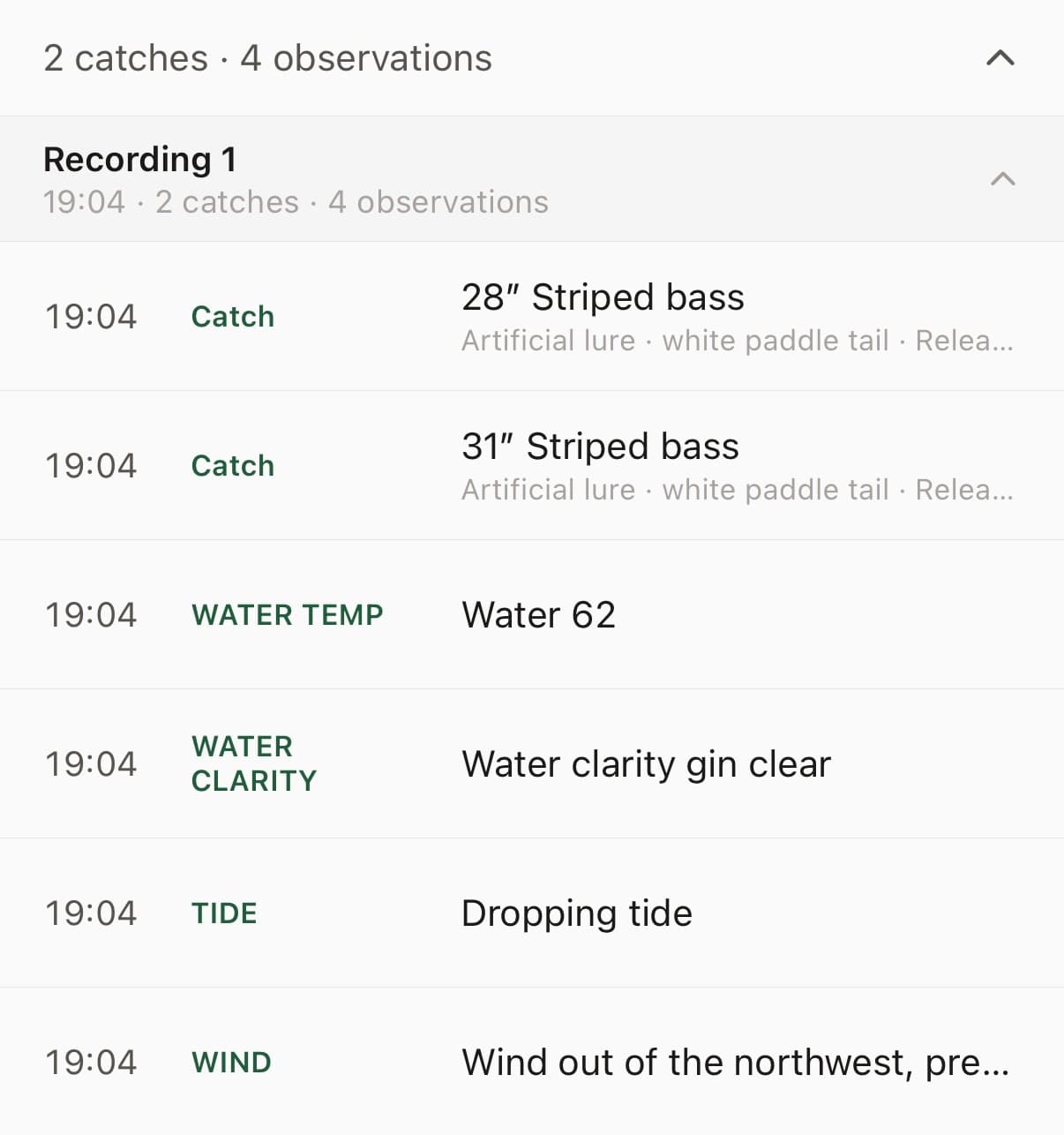
“Working a white paddletail along the edge of the marsh on the dropping tide. Water’s 62 degrees and clarity is gin clear today. Landed a 28” striper and released it. Then another one a few minutes later at 31”, also released. Wind out of the northwest, pretty light.”
WaterWatcher turns that into a structured log:
Example 2
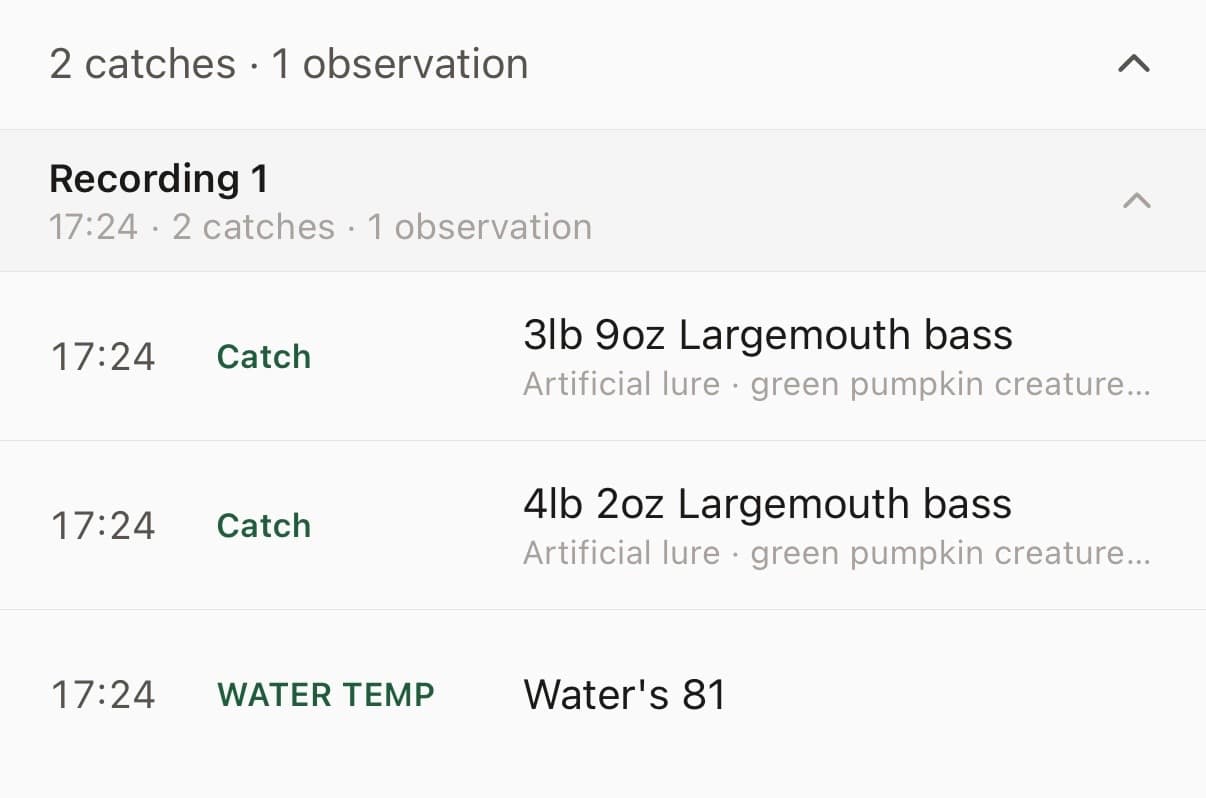
“Throwing a Texas rig with a green pumpkin creature bait around bushes in about 4 feet. Water’s 81. Just boated a largemouth, 3 lb 9 oz. Got another one 20 minutes later at 4-2, same bait.”
WaterWatcher turns that into a structured log:
Example 3
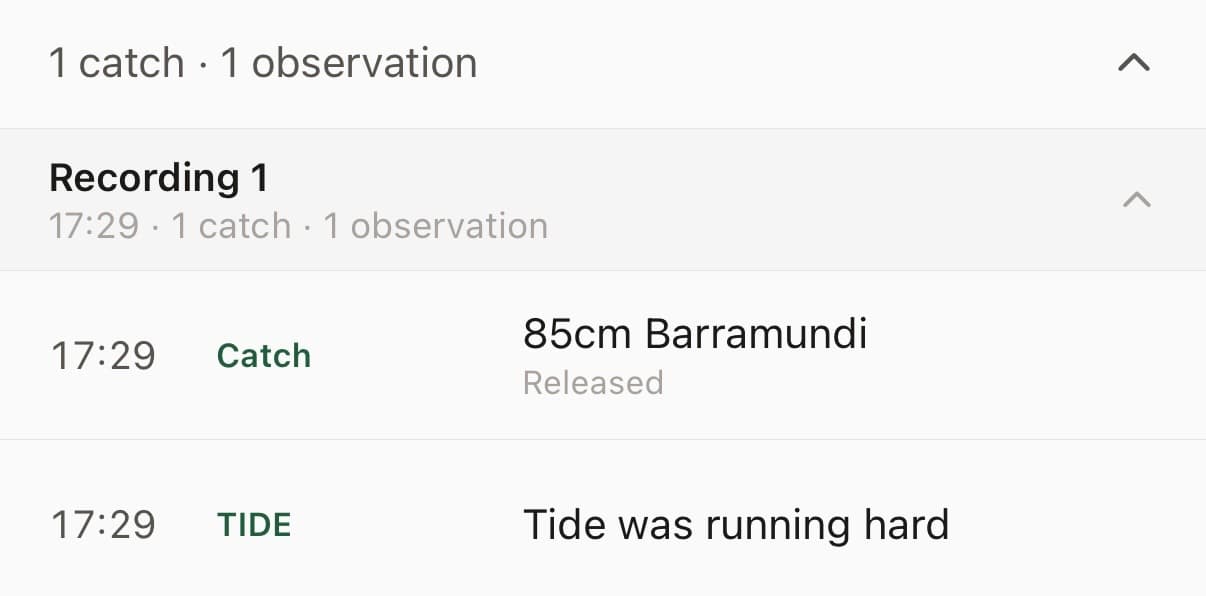
“Went out for barra at first light, nothing till about 8, then hooked into a solid one off the rock bar, 85 cm. Released it. Tide was running hard.”
WaterWatcher turns that into a structured log:
Example 4
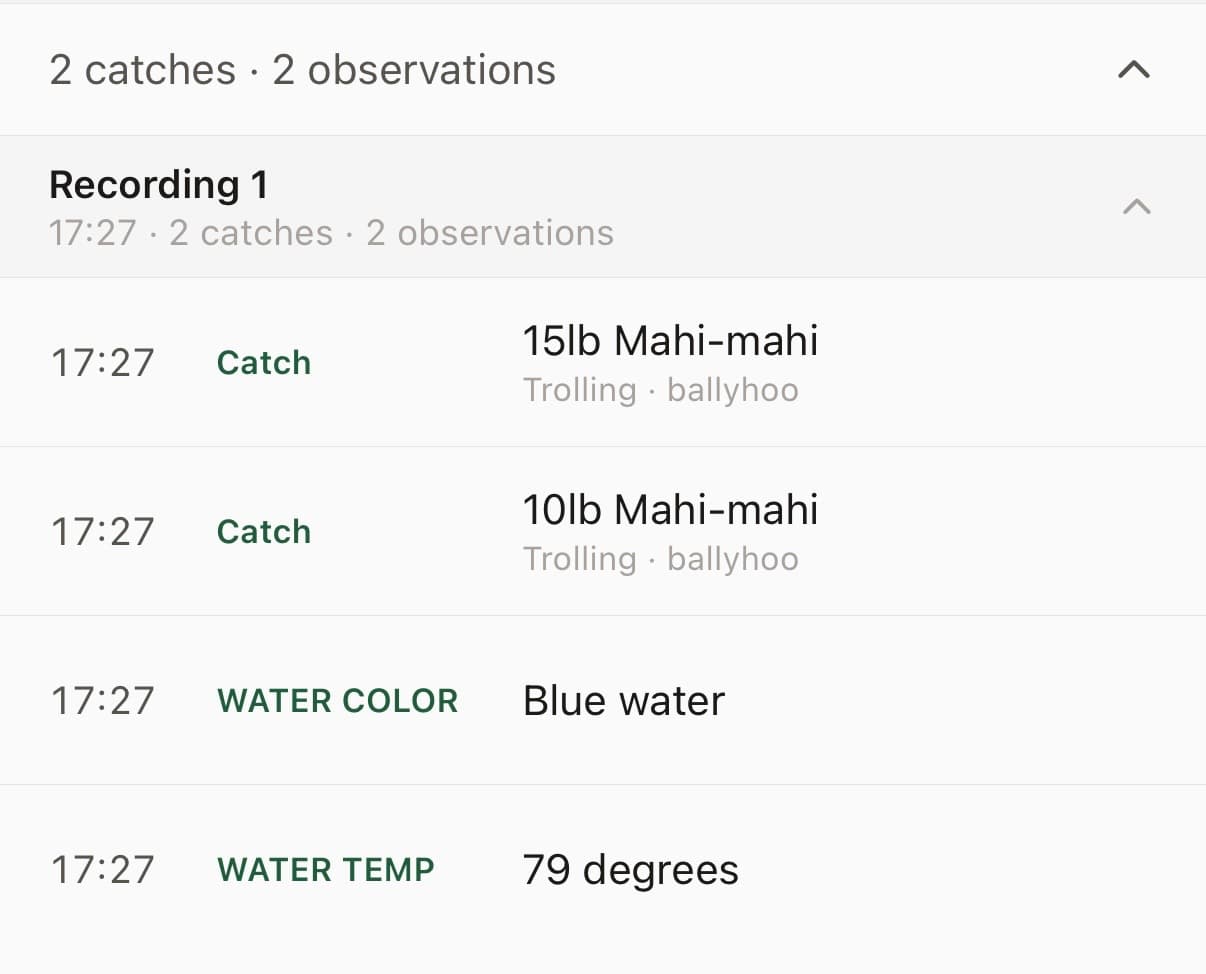
“Trolling ballyhoo along the weedline, blue water, 79 degrees. 2 mahi, one about 15 lb and one around 10 lb.”
WaterWatcher turns that into a structured log:
Example 5
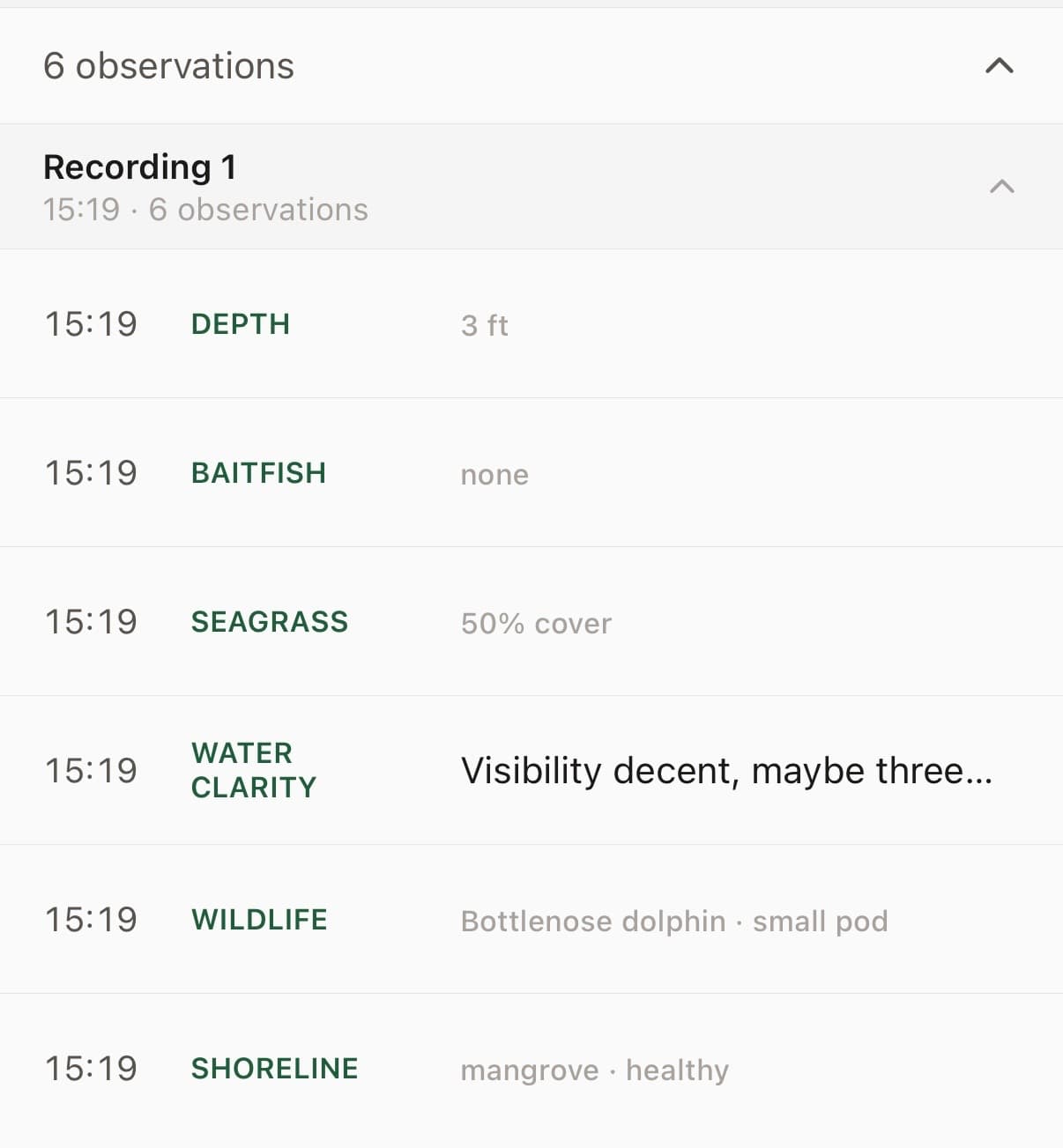
“It’s about 3 ft deep here. No signs of bait so far but there’s a lot of seagrass, covering about half of the bottom. Visibility is decent, maybe 3 or 4 ft. Saw a small pod of dolphin push through here 15 minutes ago. Mangrove shoreline looks healthy.”
WaterWatcher turns that into a structured log:
Example 6
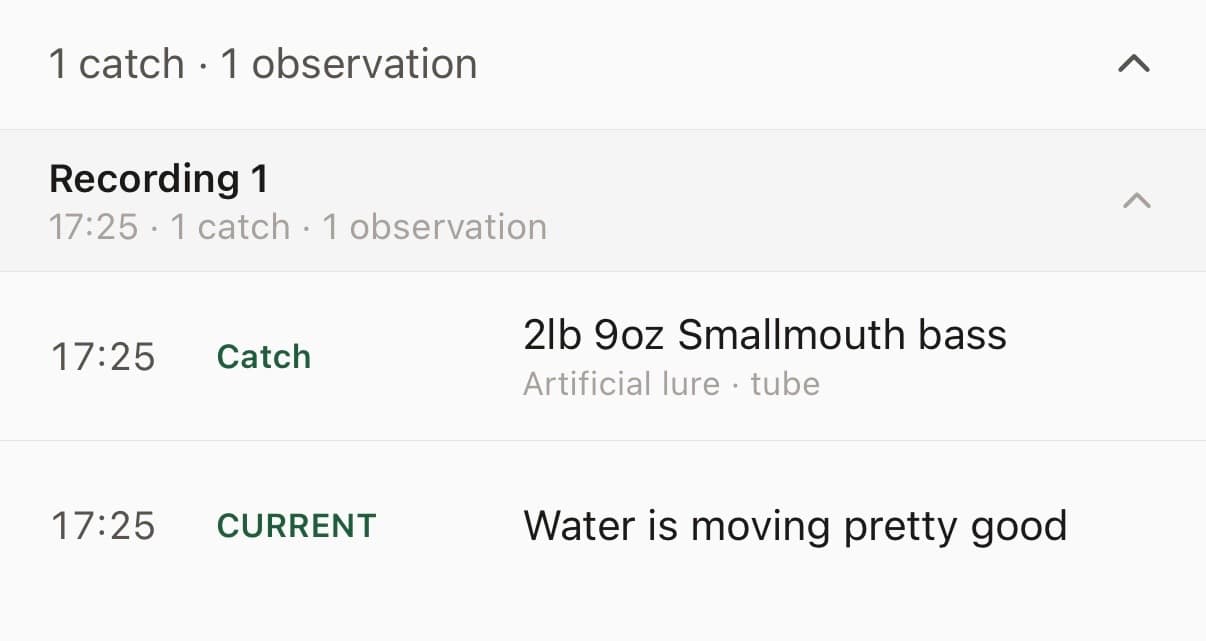
“Wading and casting a tube to the current seams, water’s moving pretty good. Caught a smallmouth, 2 lb 9 oz.”
WaterWatcher turns that into a structured log:
Example 7
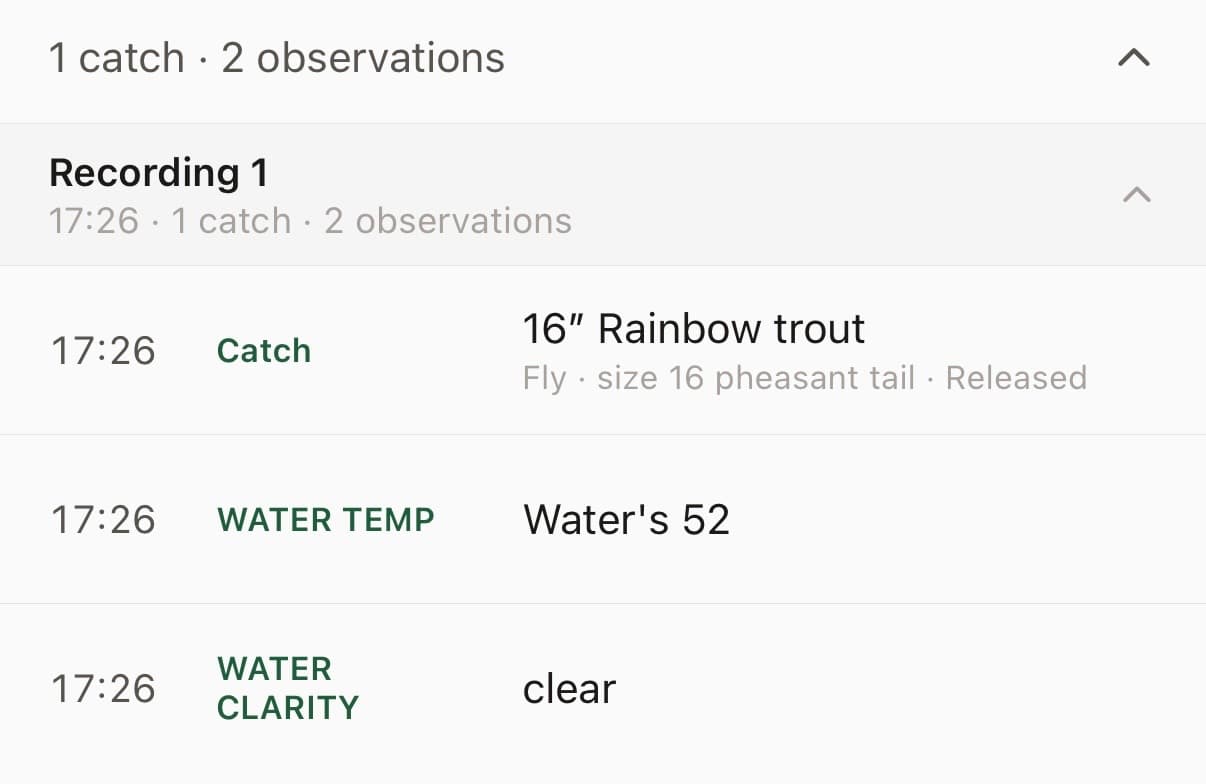
“Size 16 pheasant tail under an indicator. Water’s 52 and clear. Landed a rainbow, about 16”, and let it go.”
WaterWatcher turns that into a structured log:
LOG IT YOUR WAY
LOG ANYTIME — EVEN AFTER YOU’RE HOME
You don’t have to log in real time. Tell WaterWatcher when it actually happened — “Fished from 7 to 9 this morning” — and it pulls the real conditions for that window, not just right now.
If the times come through off, you can correct them from the trip detail — see Date & Time Correction in How-To.
ONE RECORDING OR MANY
You don’t need to capture everything in a single take. Record as many times as you want during a trip — right after a catch, back at the dock, even in the truck on the way home. Each recording gets folded into the same trip automatically.
Shorter recordings (under 30 seconds) tend to process a little faster, but there’s no real limit — if you’re willing to talk, WaterWatcher is ready to listen.
ADD A PHOTO TO ANY CATCH
After logging a catch, tap into it and add a photo — from your camera or your library. It attaches directly to that entry, so your trip review shows the fish alongside the details you logged.
GET THE BEST RESULTS
WHAT GETS CAPTURED VS. IGNORED
WaterWatcher pulls out species, size, method, location, and conditions when you mention them — everything else in your recording is just background. You don’t need to structure your sentence a certain way; say it how you’d say it to a friend.
COMMON MISTAKES
- ·Trailing off mid-sentence, or pausing for a long stretch before finishing a thought
- ·Talking about something unrelated mid-recording (a phone call, a conversation with someone else on the boat)
- ·Speaking too fast or too quietly for the details to come through clearly
EDITING AFTER THE FACT
If something comes through wrong — a size gets misheard, a species name gets garbled — tap into the entry and correct it directly. Nothing is locked in once it’s logged.
Apple Watch
WHAT IT DOES
The Watch app lets you start and end trips, and log catches by voice, right from your wrist. Your trip’s location and conditions are captured automatically — nothing to configure separately.
GETTING STARTED
Once your Apple Watch is paired with your iPhone, the WaterWatcher Watch app installs alongside the phone app automatically. Open it from your Watch home screen to get started — no separate download.
HOW TO LOG A CATCH
Start a trip from your Watch — your location and conditions are recorded for your log automatically. To record a catch, tap the mic on your Watch and say what you caught, the same way you would on the phone. End the trip from your Watch or your phone — both stay in sync.
THE PHONE STAYS PRIMARY
The Watch is a companion, not a replacement. Reviewing trips, checking conditions, and exploring your journal all happen on the phone. The Watch just handles the logging when your hands are full.
Water Color Photos
THE BASICS
Add a photo to any entry in your journal — a catch, a sighting, or a standalone note. If the photo shows open water, WaterWatcher reads the color automatically. No separate mode, no extra steps, and no catch required. This helps track water conditions over time and contributes real data to conservation research.
HOW TO TAKE A GOOD PHOTO
- ·Take a photo showing open water — a straight-down angle works best, but any clear shot of the surface is fine
- ·Try to keep the water covering most of the frame — a photo where the catch is still in frame or water is only in part of the shot won’t produce a reading
- ·On shallow or clear water where you can see the bottom, angle toward a deeper or darker patch if one is nearby — substrate visible through the water column can affect the color reading
- ·Avoid heavy glare from direct sun hitting the water surface at a low angle; overcast or shade is fine
- ·Natural light works best — avoid direct artificial light on the water
WHAT HAPPENS AFTER YOU TAKE THE PHOTO
After you upload the photo, WaterWatcher checks it in the background — no waiting required. If it shows predominantly open water, it reads the color using the Forel-Ule scale — a standard marine scientists have used for over a century to track water clarity and quality — and logs it as part of that entry’s conditions. Refresh the page to see the result.
WHY THIS MATTERS
Water color is a real signal — it reflects things like runoff, algae, and clarity trends over a season. Every reading you log, whether or not you catch anything, adds to a picture researchers and conservation partners use to understand the fishery.
Conservation
WHAT TO SAY
Observations and sightings help conservation partners. Say them the same way you’d say a catch.
“It’s about 3 ft deep here. No signs of bait so far but there’s a lot of seagrass, covering about half of the bottom. Visibility is decent, maybe 3 or 4 ft. Saw a small pod of dolphin push through here 15 minutes ago. Mangrove shoreline looks healthy.”
WaterWatcher turns that into a structured log:
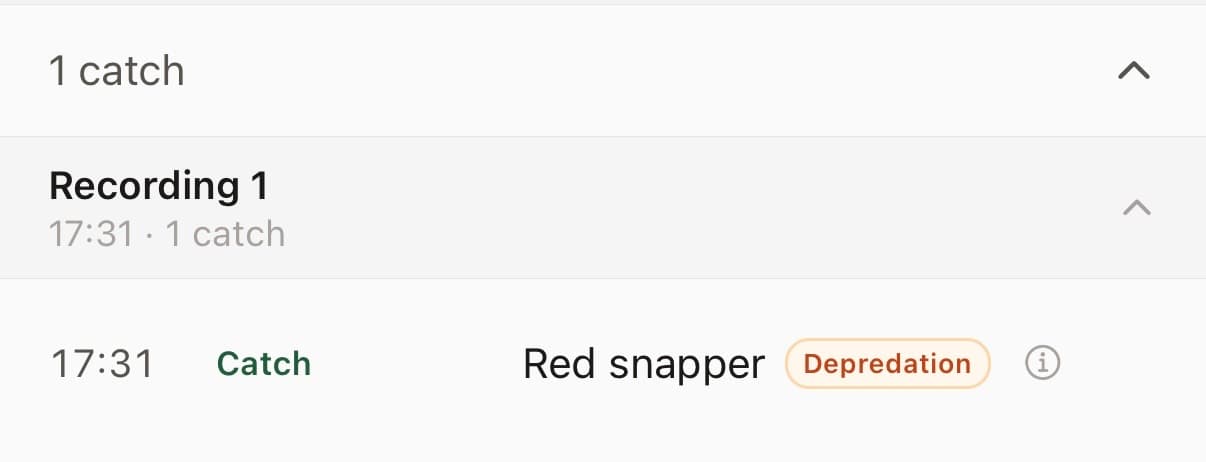
“Hooked a good red snapper out on the wreck, felt solid all the way up, then right at the boat a shark hit it. Came up half-eaten.”
WaterWatcher turns that into a structured log:
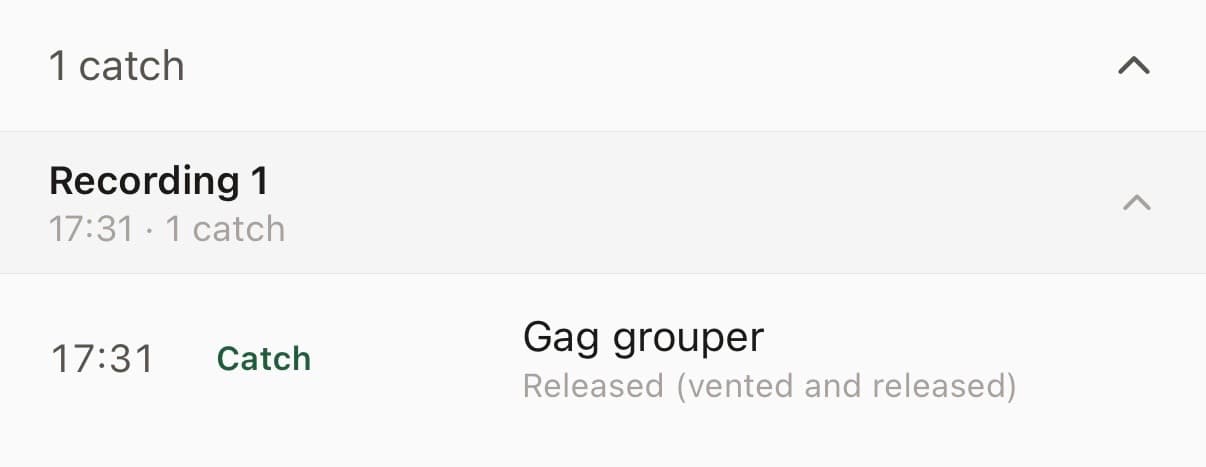
“Gag grouper today, good fish, vented it before letting it go, seemed to swim off fine.”
WaterWatcher turns that into a structured log:
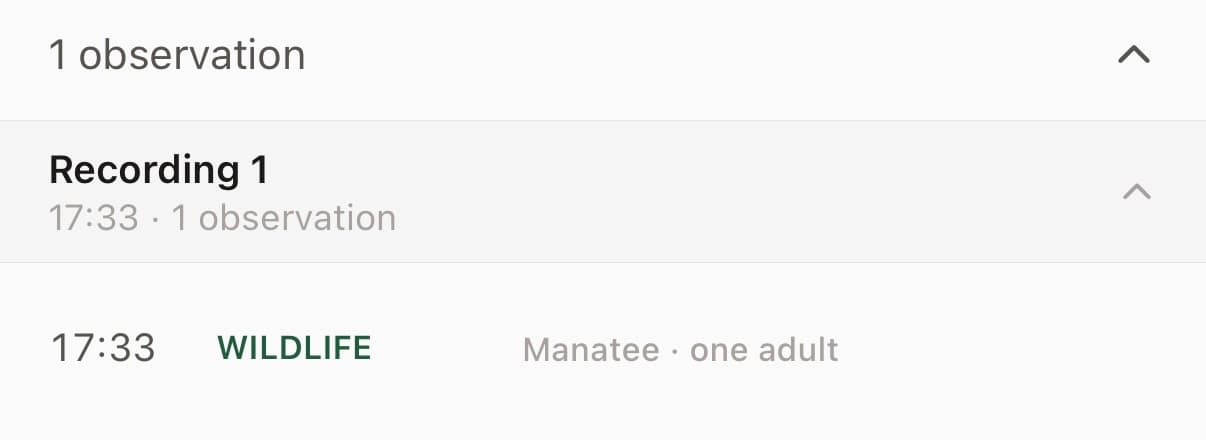
“Saw a manatee in the channel by the bridge, one adult, moving slowly north.”
WaterWatcher turns that into a structured log:
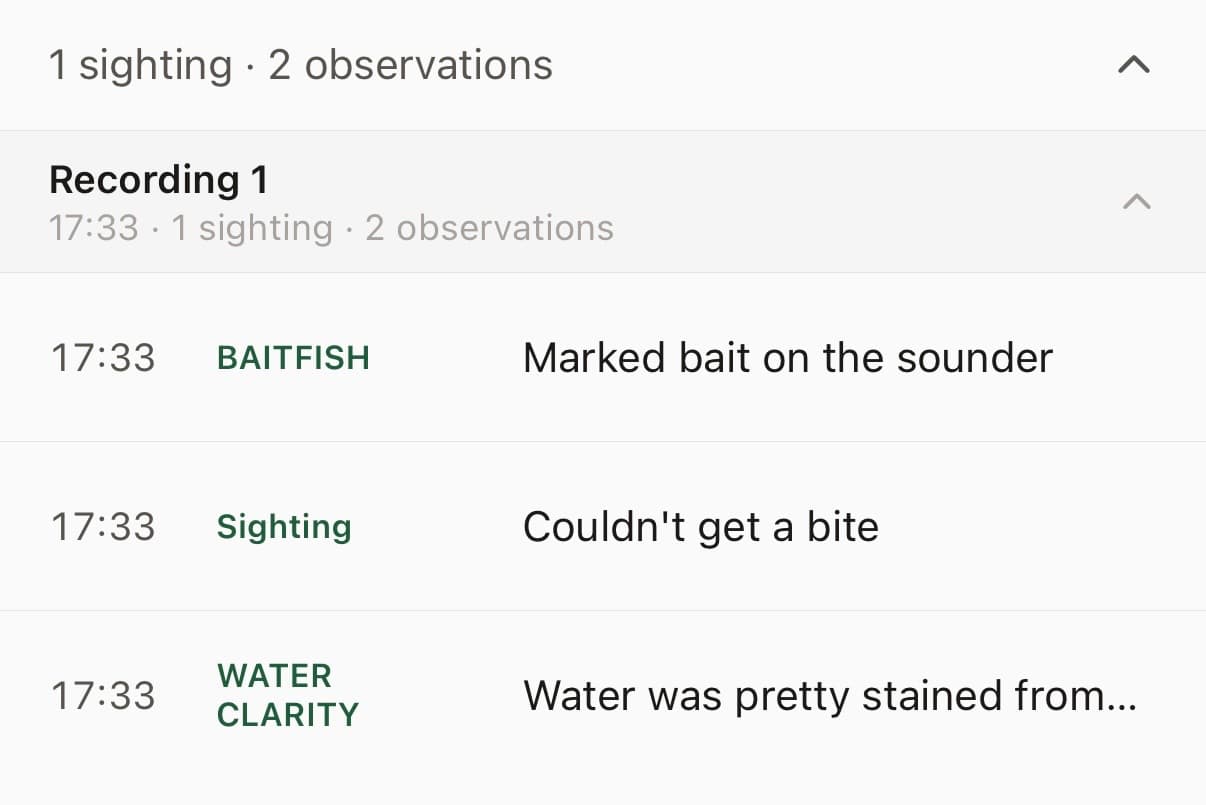
“Fished the reef for 3 hours, marked bait on the sounder but couldn’t get a bite. Water was pretty stained from the wind the last few days.”
WaterWatcher turns that into a structured log:
To log a water color reading, take a photo in any trip entry. See Water Color Photos.
WHY SKUNK TRIPS MATTER
A trip with no catches still counts. Conditions that don’t produce fish are just as valuable as conditions that do — they help build a real picture of what’s actually happening on the water, not just the good days. Log skunk trips the same way you’d log anything else.
It’s not just for the fishery, either. Every trip you log, catch or skunk, is saved in your log. Once a spot is part of your Pattern Engine, the trips you’ve already logged there count toward what WaterWatcher learns about it.
WHAT THE WATER-COLOR READING MEANS
When you take a water-color photo, WaterWatcher reads it using the Forel-Ule scale, a standard scientists use to track water clarity and quality over time. Logged consistently, these readings help build a picture of how conditions shift across a season. See Water Color Photos for how to capture one.
TAGGED FISH ENCOUNTERS
If you log a catch with a physical tag on it, WaterWatcher may ask permission to share the encounter details — like the tag number and where you caught it — with our conservation partner, so they can follow up and use it in their research. This is always your choice, asked fresh each time, and it doesn’t affect anything else about how your data is shared.
Suggesting a Spot
WHERE TO FIND IT
Open the spot picker when checking conditions or adding a new spot, and look for the “Don’t see your spot? Suggest it →” link at the bottom of the map panel. You’ll also find a link under Settings → Spots.
WHAT THE FORM ASKS FOR
Three things: a pin on the map, the name anglers actually call the spot, and the species you typically fish there. Water type — saltwater or freshwater — is detected automatically from the pin location, so you won’t see a selector for it. Species is optional but helps with the review.
AFTER YOU SUBMIT
Your suggestion goes to a short review queue before it’s added to the map. It won’t appear immediately — once it’s approved, it’ll show up as a named location for all users. Most reviews happen within a few days.